

A subscriber in New Zealand recently sent me this note:
I love your new 7-8 minute long short services. Is it possible for you to forward the ‘script’ for these via email to me??? I cannot use your ‘you tube’ services as I have no access to the internet in the Rest Homes I visit.
Good news: YouTube has a tool that automatically creates a transcript of any video!
Here’s how to do it:
- Under the Video Description, click “…more”
- Scroll down.
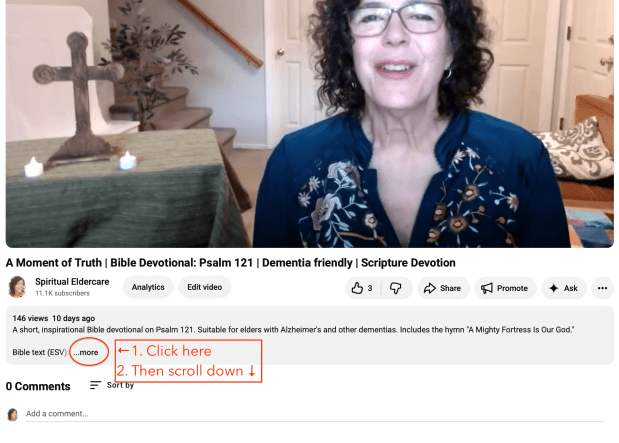
3. Click the “Show Transcript” button. Scroll back up to the video.
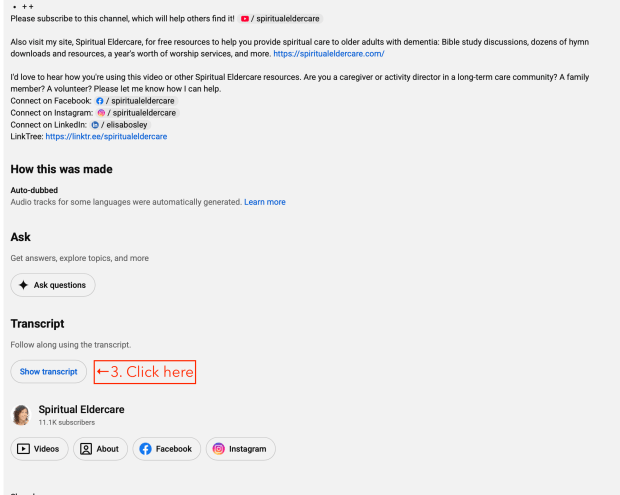
4. A word-for-word transcript will appear to the right of the video.
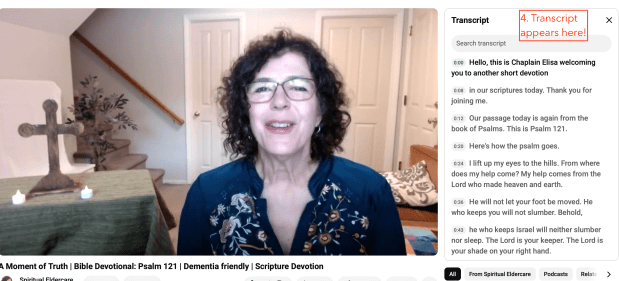
5. Copy the entire transcript and save into a Word doc (it looks like this).
6. I used Google Gemini, an AI tool, to clean up the doc, eliminating timestamps and other extraneous copy. Here’s a look at what it produced.
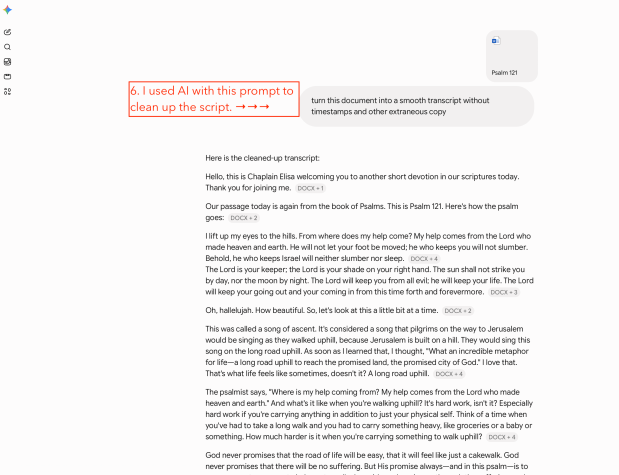
7. I copied the AI text and pasted it into a new Word doc. Be sure to go through it carefully to fix typos; AI isn’t perfect! I also added SpiritualEldercare copyright language and my logo.
And here is the finished product!
I also found a free tool called YouTube to Transcript. You simply plug in the video URL and it creates a transcript. The transcript comes out a little messier than the AI-assisted version (including “uh’s” and such), but the tool is incredibly easy to use.
Thanks for the good question, and let me know what you think!
Peace be with you,


